PDF Files Are Easy to Share but Difficult to Edit
PDF files are used throughout business because they preserve a document’s appearance across different computers, devices, and operating systems.
They are useful for distributing reports, contracts, proposals, policies, instructions, invoices, research, and other important documents. However, the same format that makes a PDF dependable for sharing can make its content frustrating to reuse.
You may need to copy information from a PDF, correct outdated wording, reuse part of a report, prepare content for another system, or convert the document into a format that is easier to edit.
Manually copying the text may work for a short document. For a longer PDF, it can quickly become slow, repetitive, and difficult to manage.
What Does It Mean to Extract Text from a PDF?
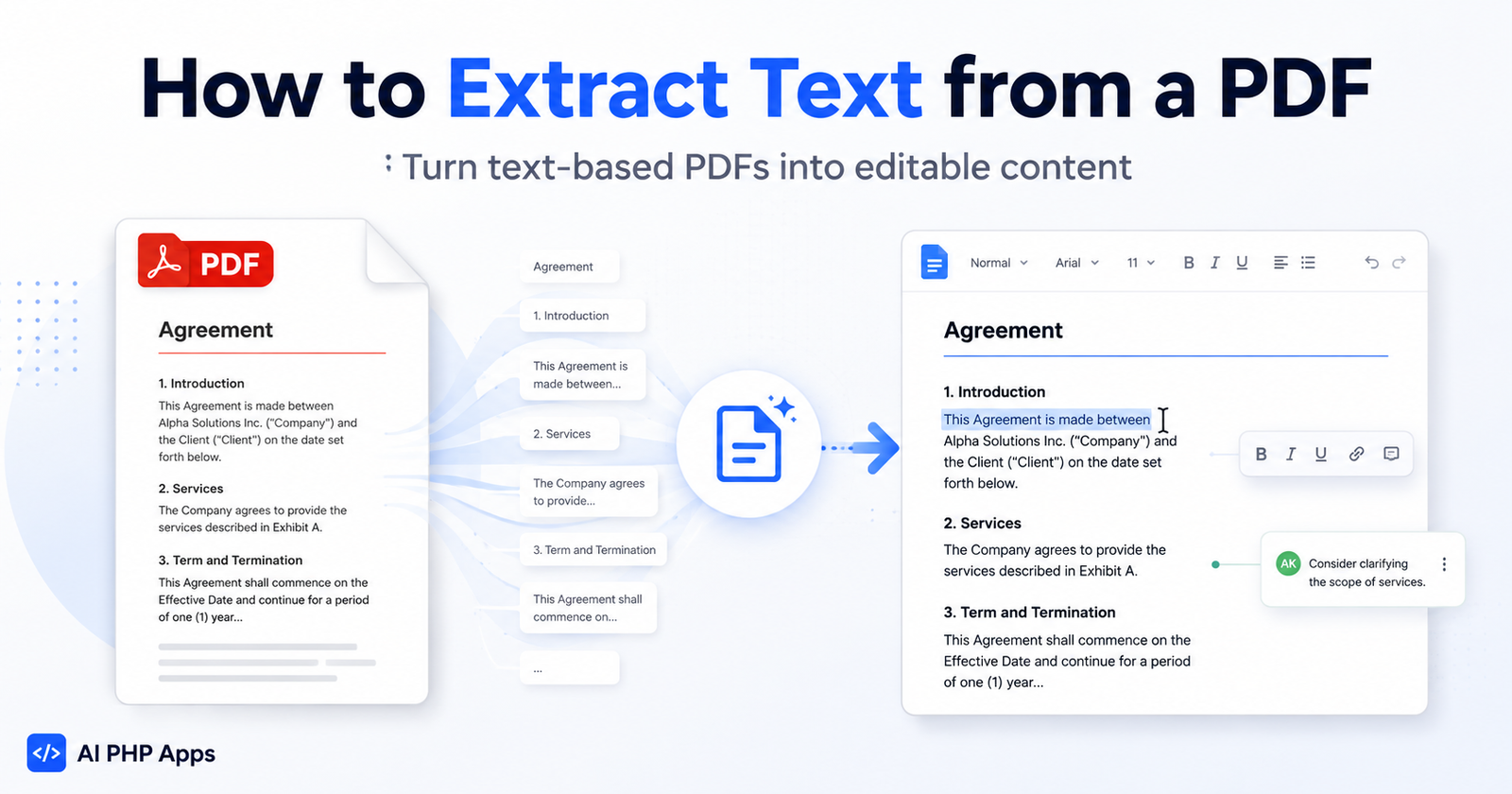
PDF text extraction is the process of reading the text stored inside a PDF file and converting it into content that can be reviewed, edited, copied, saved, or downloaded.
Instead of treating the PDF as a finished page that can only be viewed, an extraction tool retrieves the underlying text and places it into an editable workspace.
This can be useful when you need to:
- Reuse content from an existing document
- Correct spelling or formatting problems
- Update an old report or policy
- Move PDF content into another application
- Create a cleaner editable copy
- Search through lengthy document text
- Preserve useful content from an archived PDF
Text-Based PDFs and Scanned PDFs Are Different
Before choosing a PDF extraction tool, it is important to understand that not every PDF stores its content in the same way.
Text-Based PDFs
A text-based PDF contains actual digital characters. These PDFs are commonly created by exporting a document from Microsoft Word, Google Docs, accounting software, publishing software, or another computer application.
You can often test a PDF by opening it and attempting to highlight a sentence with your mouse. When individual words and sentences can be selected, the file is probably text-based.
Scanned or Image-Based PDFs
A scanned PDF may contain only pictures of document pages. Even though words are visible on the screen, the file may not contain readable digital text.
Extracting words from an image-based PDF generally requires optical character recognition, commonly called OCR.
AI PDF Extractor currently works with text-based PDF documents. It does not currently include OCR for scanned or image-only PDFs.
How to Extract Text from a PDF
The exact process depends on the software you use, but a practical extraction workflow usually includes the following steps.
Step 1: Choose a Text-Based PDF
Begin with a PDF that contains selectable text. Documents exported directly from a word processor, reporting platform, or business application usually provide better results than scanned pages.
For your first test, choose a small document that does not contain confidential or irreplaceable information.
Step 2: Upload the PDF
Open your PDF extraction application and select the document from your computer.
The application reads the file and attempts to retrieve the text stored inside it. Processing time will depend on the document’s size, complexity, and number of pages.
Step 3: Review the Extracted Content
After extraction, carefully review the results.
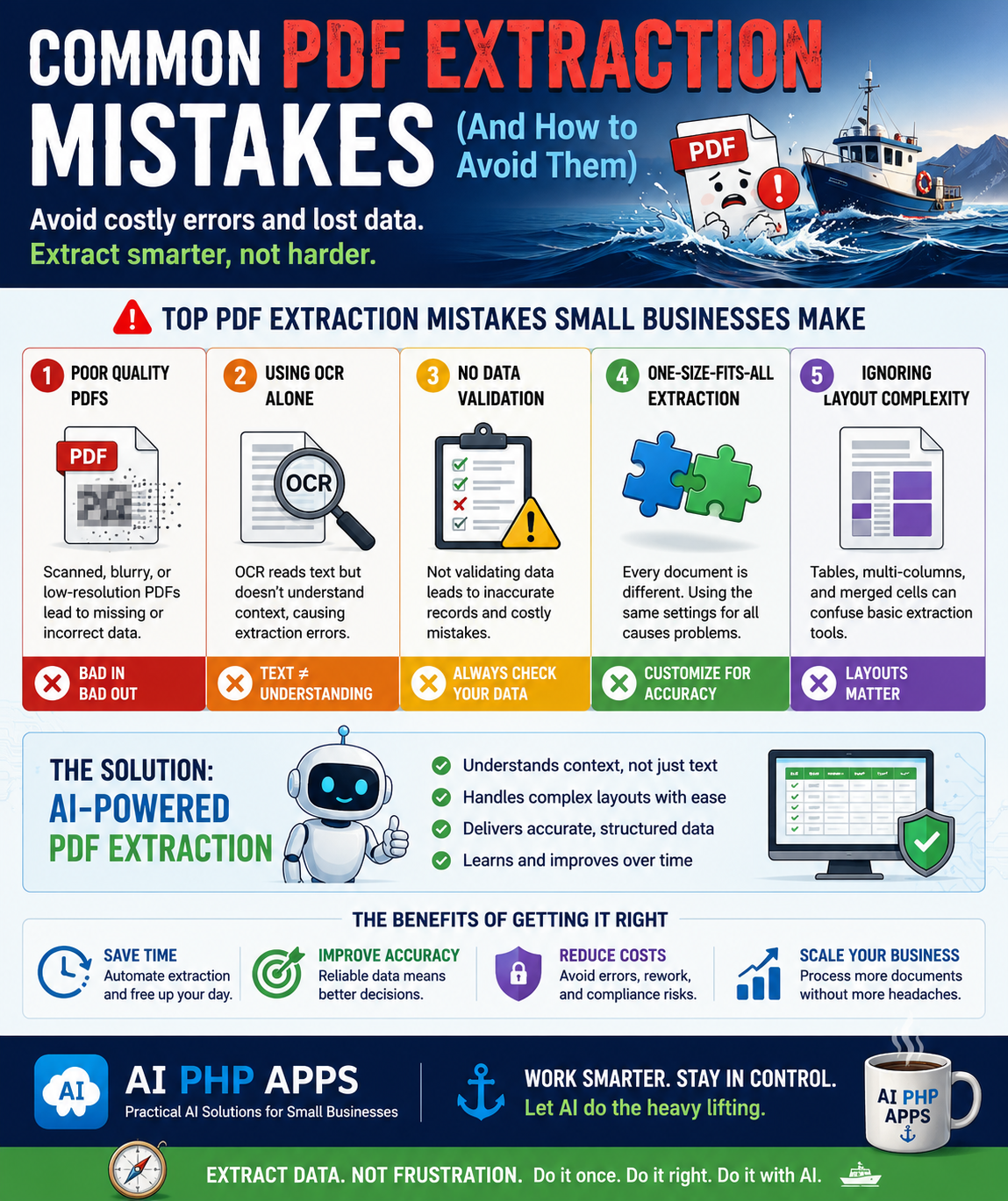
PDF documents are designed to control visual layout rather than provide a perfect editing structure. Because of this, extracted content may occasionally contain unusual line breaks, spacing, page numbers, headers, footers, or reordered sections.
Pay particular attention to:
- Paragraph breaks
- Headings
- Lists
- Page numbers
- Headers and footers
- Special characters
- Columns and tables
Step 4: Edit and Clean the Text
Once the content is available in an editable area, remove unnecessary page elements and correct any formatting issues.
You can also update outdated wording, combine broken paragraphs, correct typographical errors, and organize the extracted information for its new purpose.
Step 5: Save Your Changes
Save the edited version before leaving the application. This gives you a working copy that can be reviewed again without repeating the original extraction.
Step 6: Download the Finished Document
After reviewing and saving the text, download the finished content in the format supported by your application.
Keep the original PDF as an unchanged source document. The extracted version should be treated as a separate working copy.
A Practical Business Example
Imagine that a small business has a 30-page employee handbook saved as a PDF. Several policies need to be updated, but the original editable document can no longer be located.
Copying each paragraph manually would require opening the PDF, selecting sections one at a time, switching between applications, pasting the content, and correcting the formatting repeatedly.
With a PDF extraction tool, the business can use a more direct workflow:
- Upload the text-based handbook PDF.
- Extract the document’s text.
- Review the content for formatting issues.
- Edit the outdated policies.
- Save the revised text.
- Download the editable document.
The final content should still be reviewed carefully, but the business avoids rebuilding the entire handbook one paragraph at a time.
Common Problems During PDF Text Extraction
Text extraction can save considerable time, but PDF files vary widely. Knowing what can go wrong helps you evaluate the results more effectively.
Unusual Line Breaks
A PDF may store every visual line separately. Extracted paragraphs can therefore contain breaks in places where the text should continue normally.
Repeated Headers and Footers
Page titles, copyright notices, page numbers, and footer text may appear repeatedly throughout the extracted content.
Multiple Columns
Documents containing newsletters, brochures, or multi-column layouts may be extracted in an unexpected reading order.
Tables
Tables are designed around rows, columns, and visual alignment. Plain text extraction may preserve the words without perfectly preserving the original table structure.
Missing Text
If visible words are part of an embedded image rather than digital text, a standard text extractor may not be able to read them.
Protected Documents
Password protection, encryption, document permissions, or damaged files may prevent successful processing.
How to Improve Extraction Results
You can improve the reliability of your workflow by following a few practical guidelines.
- Use PDFs created directly from digital documents whenever possible.
- Confirm that the text can be selected before uploading the file.
- Start with a smaller document when testing a new tool.
- Keep the original PDF as a permanent reference.
- Review all extracted content before using or distributing it.
- Check names, dates, totals, and other important details manually.
- Expect complex layouts to require additional cleanup.
- Use OCR software when the PDF contains scanned page images.
Online PDF Tools vs Self-Hosted PDF Extraction
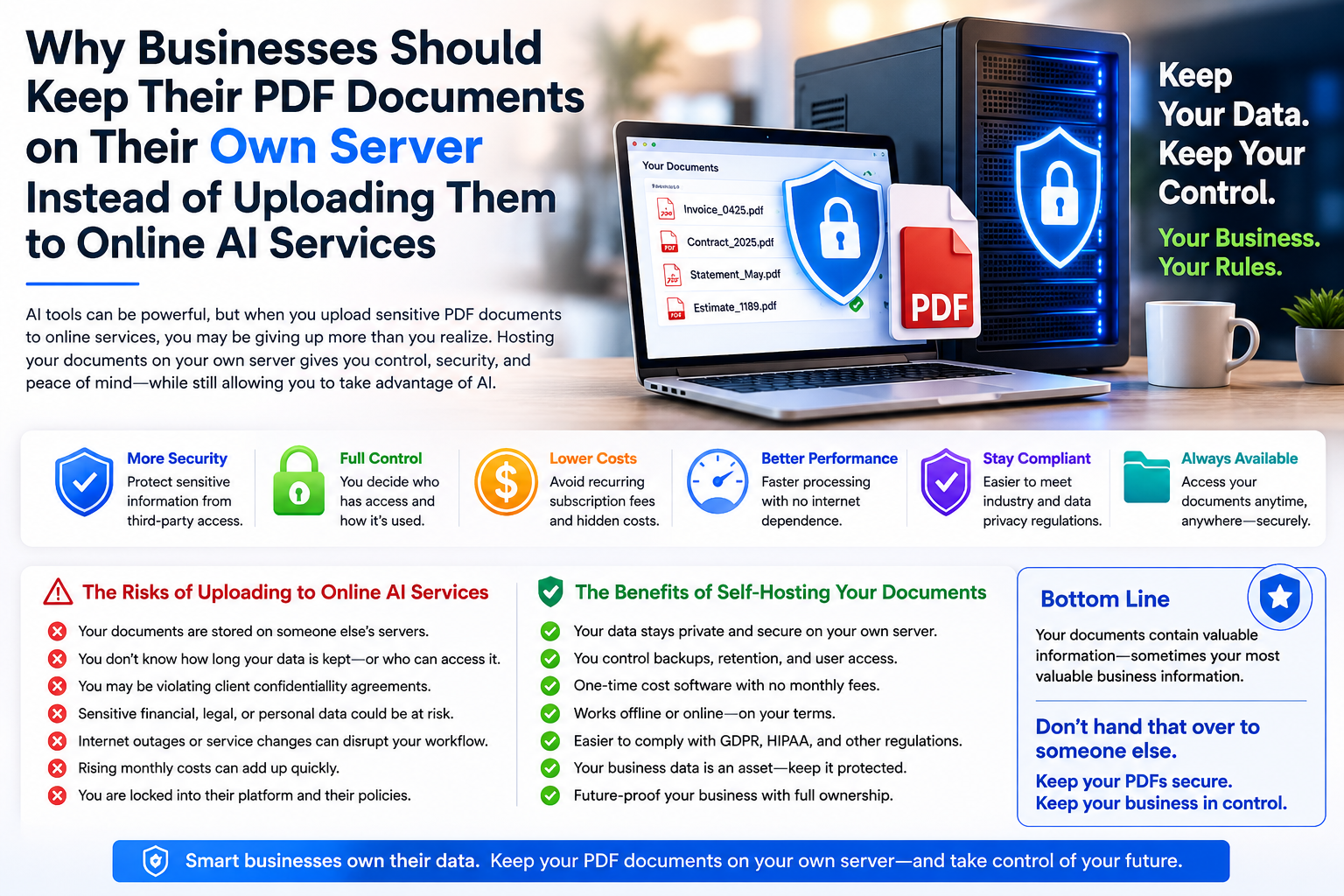
Many websites provide free or subscription-based PDF tools. These services may be convenient, but they normally require you to send the document to an externally operated system.
A self-hosted PDF extraction application is installed on hosting or a server that you control.
This can provide several practical advantages:
- Control over where the application is installed
- Control over user access
- Control over document retention
- Freedom from another recurring software subscription
- The ability to customize the application
- A workflow that remains within your own business environment
Self-hosting does not automatically guarantee security or regulatory compliance. The server, application, user accounts, file permissions, backups, updates, and access controls must still be configured and maintained responsibly.
When a Self-Hosted PDF Extractor Makes Sense
A self-hosted tool may be a good fit when your business regularly works with text-based PDFs and prefers software ownership over another hosted subscription.
Potential users include:
- Small business owners
- Administrative teams
- Agencies
- Researchers
- Writers and editors
- Consultants
- Developers
- Organizations with archived business documents
It may not be the right solution when your workflow depends primarily on scanned documents, handwriting recognition, complex table reconstruction, automated accounting fields, or enterprise document-management features.
Introducing AI PDF Extractor
AI PDF Extractor from AI PHP Apps is a self-hosted PHP and MySQL application designed to help users extract text from text-based PDF files.
The application provides a straightforward workflow:
- Upload a text-based PDF.
- Extract its readable text.
- Review and edit the content.
- Save your changes.
- Download the finished document.
It is built for people who want a focused PDF extraction tool without adding another monthly software subscription.
The application is installed on your own compatible hosting environment, allowing you to manage the software and its stored documents within infrastructure you control.
Frequently Asked Questions
Can I extract text from any PDF?
No. Results depend on how the PDF was created. Text-based PDFs are suitable for standard text extraction, while scanned or image-only PDFs normally require OCR.
How can I tell whether my PDF contains readable text?
Open the document and attempt to highlight individual words or sentences. If you can select the text normally, the PDF is likely text-based.
Does AI PDF Extractor include OCR?
No. AI PDF Extractor currently processes text-based PDFs and does not currently include OCR for scanned or image-only documents.
Will the extracted document look exactly like the PDF?
Not necessarily. PDF extraction focuses on retrieving content. Complex formatting, columns, tables, images, headers, and page layouts may not be reproduced exactly.
Should I review extracted text?
Yes. Always review extracted content before using it for business, financial, contractual, legal, medical, or other important purposes.
Is AI PDF Extractor a monthly subscription?
No. AI PHP Apps offers self-hosted software with one-time purchase pricing. Normal web-hosting expenses may still apply.
Where is the application installed?
AI PDF Extractor is installed on your own compatible PHP and MySQL hosting environment.
Final Thoughts
PDF documents are excellent for preserving and sharing finished information, but they are not always convenient when that information needs to be reused or edited.
A PDF text extractor can reduce repetitive copying by retrieving the readable content and placing it into an editable workflow.
The key is to use the right tool for the right document. Standard extraction works best with text-based PDFs. Scanned files require OCR, and complex layouts may still require manual cleanup.
For businesses that prefer a focused, self-hosted solution, AI PDF Extractor provides a practical way to extract, review, edit, save, and download content from text-based PDF documents.