Why You Need an OpenAI API Key
Many self-hosted AI applications need an OpenAI API key to generate AI-powered responses, summaries, drafts, and business workflow content.
An API key works like a secure password that allows your application to connect to your OpenAI account. When your AI PHP app needs to generate a response, it uses your API key to send the request through the OpenAI API.
This guide walks through the basic process of creating an OpenAI account, generating an API key, and using it safely with self-hosted AI PHP/MySQL applications.
Step 1: Create or Sign In to Your OpenAI Account
Start by visiting the OpenAI platform and signing in to your account. If you do not already have an account, create one using your preferred email address.
The OpenAI API platform is separate from simply using ChatGPT. You may need to set up API billing before your API key can be used successfully in an application.
Step 2: Open the API Key Page
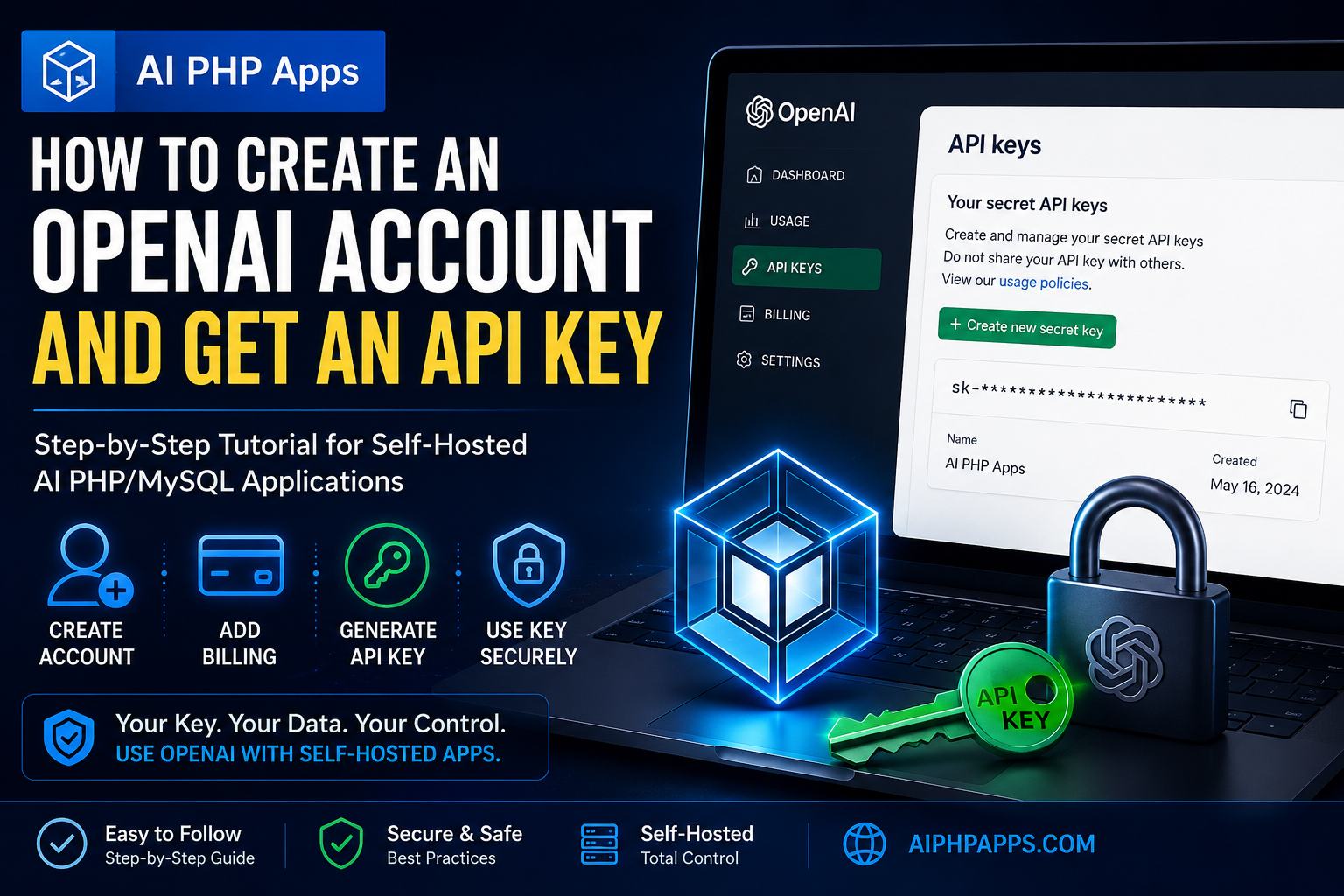
After signing in, go to the OpenAI API key area in your developer dashboard.
This is where you can create and manage secret API keys for your account or project.
OpenAI only shows the full secret key when it is first created, so copy it and store it somewhere safe right away.
Step 3: Create a New Secret Key
On the API key page, choose the option to create a new secret key.
Give the key a name that helps you recognize what it is for. For example:
- AI PHP Apps
- AI Email Support Assistant
- AI Estimate Assistant
- Business Website AI Tools
Using a clear name makes it easier to manage your keys later.
Step 4: Copy and Store the Key Safely
Once the key is created, copy it immediately.
For security reasons, OpenAI does not continue showing the full secret key after creation. If you lose it, you will need to create a new key and update your application.
Do not post your API key publicly, send it in email unnecessarily, add it to JavaScript files, or expose it in browser-side code.
Step 5: Add Billing if Required
To use the OpenAI API in a live application, your OpenAI account may need billing enabled.
API usage is typically billed based on the model used and the amount of input and output processed by the API. Pricing can change, so always review the current pricing information directly on OpenAI’s website.
If your AI PHP app is not generating responses, billing setup is one of the first things to check.
Step 6: Paste the API Key Into Your AI PHP App
After you have created and copied your API key, paste it into the settings area of your self-hosted AI PHP application.
For AI PHP Apps products, the exact setup steps may vary by product, but the general idea is the same:
- Open your installed AI PHP app.
- Go to the settings or configuration area.
- Paste your OpenAI API key into the API key field.
- Save the settings.
- Test the app by generating a sample response.
API Key Safety Tips
Your API key should be treated like a private password for your OpenAI account.
- Do not share your API key publicly.
- Do not place your API key in front-end JavaScript.
- Do not commit your API key to public GitHub repositories.
- Use server-side configuration whenever possible.
- Delete and replace old keys if you believe one was exposed.
- Create separate keys for different projects when useful.
If an API key is lost or exposed, create a new key and update your application with the new value.
Common Setup Issues
The app says the API key is invalid
Double-check that the key was copied correctly and that there are no extra spaces before or after it.
The app is not generating responses
Check whether API billing is enabled, whether the key is active, and whether your server can make outbound API requests.
I lost my API key
Create a new API key in your OpenAI dashboard and update your application settings.
Can I use the same key for multiple apps?
You can, but using separate keys for different applications can make management and troubleshooting easier.
Using OpenAI With Self-Hosted AI PHP Apps
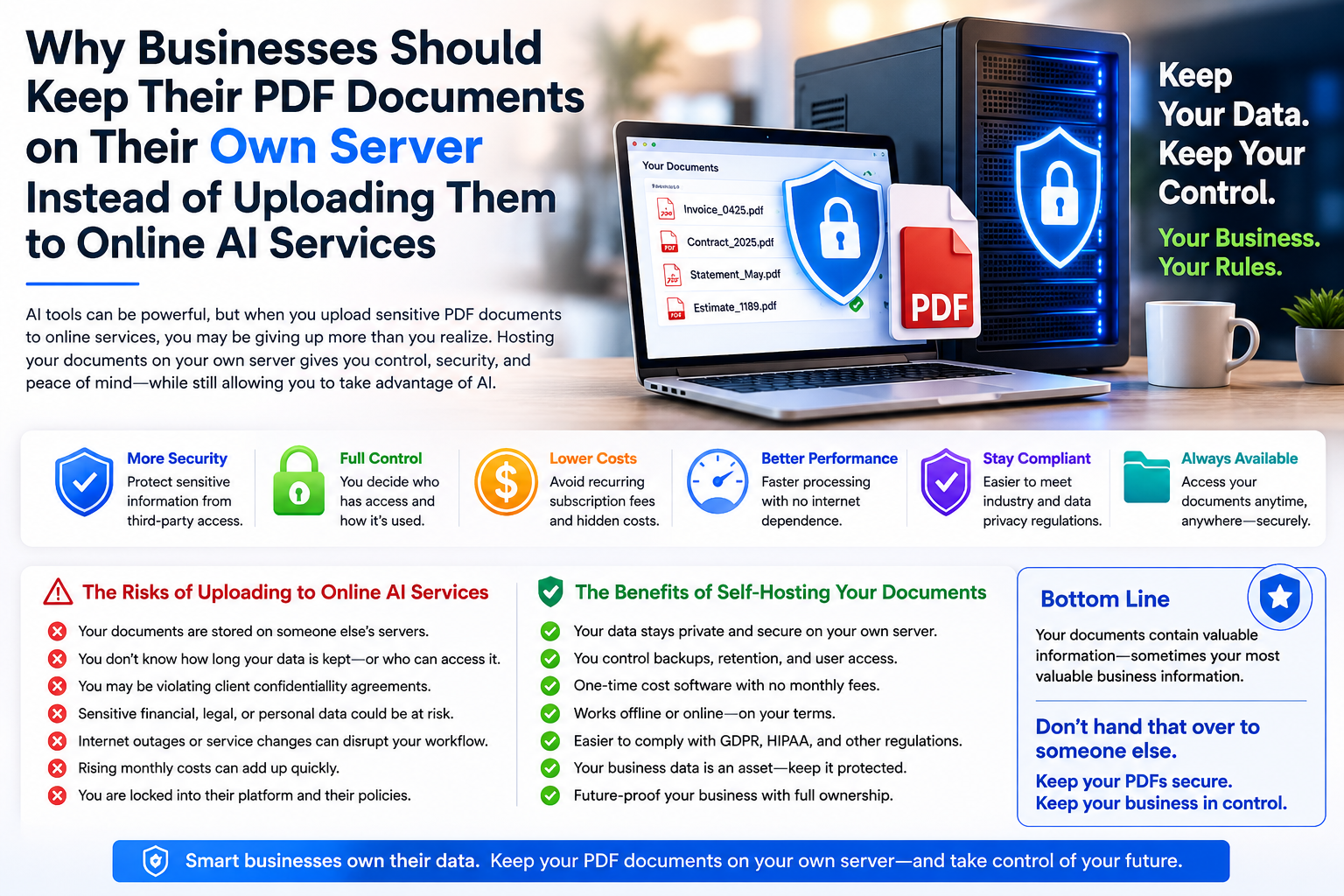
AI PHP Apps products are designed for users who want practical self-hosted AI tools while keeping control over their own hosting, files, and API account.
Instead of locking you into a monthly SaaS platform, AI PHP Apps lets you use your own OpenAI API key with PHP/MySQL applications installed on your own hosting.
This approach gives you more control over your setup while still allowing your business tools to use AI-powered features.
Frequently Asked Questions
Is an OpenAI API key the same as a ChatGPT login?
No. Your ChatGPT login and your OpenAI API access are related to your OpenAI account, but an API key is specifically used by software applications to connect to OpenAI programmatically.
Do I need billing enabled?
For live API use, billing may be required. Check your OpenAI platform account to confirm your current billing status.
Will AI PHP Apps see my API key?
If you self-host the application, your key is entered into your own installed copy of the software. You control your own hosting and configuration.
What happens if I delete an API key?
Applications using that key will stop working until you create a new key and update the application settings.
Can I limit what an API key can do?
OpenAI supports API key permissions in the platform. Depending on your needs, you may be able to use restricted permissions for more controlled access.
Final Thoughts
Creating an OpenAI API key is one of the first steps in using self-hosted AI business tools.
Once your key is created, stored safely, and added to your AI PHP app, your application can begin generating AI-powered responses, drafts, summaries, and workflow assistance.
For business owners and developers who prefer ownership and control, using your own API key with self-hosted PHP/MySQL software is a practical way to add AI features without relying on another fully managed SaaS platform.